

Google Ads Assets – How and Why to Use Them in Search Campaigns
What are Google ad assets?
Extensions or Assets?
It’s worth noting that Google has recently made some changes to its advertising platform, including a rebranding from the word “Google ad extensions” to “Google ad assets” but they are essentially very similar.
The term “asset” is used to encompass a wider range of creative elements, including not just traditional extensions but also videos, logos, and other visual or audio content that can be used in ads. By consolidating these different elements under the umbrella of “assets,” Google is making it easier for advertisers to manage all of their assets in one place. Whether you refer to them as “Google ad extensions” or “Google ad assets” these elements doesn’t matter (our founder is still calling a Snickers a Marathon so we are all good)!
Why use assets in Google ads?
There isn’t a reason NOT to use Google ads assets. They provide additional value to searchers and give you more space on the search results page. Think of it like this – if you were advertising in a newspaper, assets are like giving you a whole page when all you’ve taken out is half of one.
Here are some reasons to use assets/add assets to your Google search campaigns.
Increased visibility:
By using assets, your ad will take up more space on the search results page, making it more visible to potential customers. This can increase the likelihood of users clicking on your ad and ultimately converting. In fact, adding just a single extension type can increase your click-through rates by up to 15%.
Enhanced relevance:
Assets allow you to provide additional information about your business, product, or service, making your ad more relevant to users’ search queries. This can improve the quality score of your ad and increase the likelihood of it being shown to users.
Improved user experience:
Assets can make it easier for users to find the information they need or take action, such as making a phone call or visiting a specific landing page on your website. This can create a more seamless and enjoyable user experience, which can help to build trust and loyalty with potential customers. You can even show a bit of brand personality with your callout assets – giving users a flavour of what you’re like to work with.
Greater flexibility:
Google ad assets give you more control over the content and appearance of your ads, allowing you to tailor your messaging to specific audiences or campaigns. This can help you to achieve your marketing goals more effectively and efficiently.
Types of Assets in Google Ads
Sitelink assets:
Sitelink assets allow you to add additional links to your ad, which can take users to specific pages on your website. This is particularly useful if you want to highlight specific products or services.
For example, if you are running Google ads for a law firm, you might include links to areas such as “Family Law”, “Conveyancing”, or “Personal Injury”. You may also want to use site links to highlight valuable pages of the site, such as your “About Us” page or information on things like Shipping or your returns policy for eCommerce stores.
What they might look like online

Callout assets:
Callout assets enable advertisers to enhance their ads with supplementary phrases that emphasise the advantages of the product or service they are offering. For example, if you’re selling online, you might use “next-day delivery” or “10% off your first order”.
Example

Structured Snippet assets:
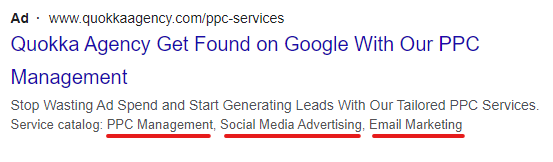
Location assets:
Call assets:
Call assets allow users to call your business directly from the ad without needing to visit your website first. This is particularly useful for businesses where a potential customer needs a quick fix.
For example, suppose you are running an ad for a locksmith’s service. In that case, you may add a call extension for a campaign around “emergency locksmith”, as users just need help there and then, and are less likely to be “shopping around” various websites.

Promotion assets:
Seller rating assets
Image assets
Price assets:
Lead form assets
These assets allow advertisers to add a form to their ad, which potential customers can fill out without leaving the ad. These forms typically ask for contact information, such as a name, phone number, and email address, and can also include custom questions tailored to the advertiser’s needs.
When a user clicks on the extension, the form appears directly in the ad, making it easy for them to submit their information without having to navigate to a separate landing page. Advertisers can then download the leads or send them directly to their CRM system for follow-up. By removing the friction of navigating to a separate landing page, these assets can increase the likelihood that a user will complete the form, resulting in more leads for the advertiser.
When do Google ads assets show?
Do I pay extra to add Google assets?
There is no additional cost to add assets to your campaigns. However, if people click on an asset in an advert, be it a site link, an image or another clickable asset, you will be charged for that click as usual (non-clickable assets such as seller ratings will not be charged).
Therefore it’s essential that you choose your assets wisely as if they are not that relevant for your business, you may waste your budget on clicks that are not likely to convert.
Ok, you’ve convinced yourself that you need Google ads assets, but how can you set them up?
How to add and edit Google ads assets
You can watch this video about creating assets in your Google Ads account.
In this video, I will show you how to add assets to your Google Ads campaigns. I will explain two different ways to do it, whether you already have campaigns running or if you are creating new ads. I will guide you through the process of adding assets such as site links, descriptions, callouts, and structured snippets. It’s important to ensure that the assets you add are relevant to the campaign you are running. By adding more assets, you can maximise the space you get on Google search results.
So I’m just going to share how you can add assets to your Google Ads campaigns. You can actually do it in two places.
First of all, if you’ve already got campaigns running and you’ve decided you want to add some assets to them, you scroll over here to the “assets” menu to add or adjust them.
Go to assets, and you can also see what’s already in there. So if someone else has set up your campaigns for you, go through, and check that they’re all still relevant.
If you want to add your assets, you click the type of asset you want then click the plus button. And you can add these account campaigns or ad group level.
And also, you can actually add assets as you are creating your ads. So let’s just go here and create an ad.
Once you have created your ads you can put in all of your assets, after adding your headlines and your descriptions. You can add assets just underneath So you can see, we’ve got some image assets here and added our business logo.
So you can do that either of those two ways and just be mindful that the more assets you use, the more space you’re going to get on those Google search results.So don’t forget to add. assets to your campaigns.
However, if you use Google ads, adding assets to your campaigns is a quick win to maximise your visibility and get more clicks for your budget